
If shoppers can’t find what they want in your WooCommerce store within a few clicks, they’ll leave. And that’s exactly what happens to many small business owners. As their product catalogs grow, they lose potential customers because they can’t easily filter products.
That’s why I decided to look for a solution. I needed a way to add advanced filters without hiring a developer to build them from scratch.
So, I tested a range of WooCommerce filter plugins and ended up using WPFilters. It gave me the exact filters I needed without feeling heavy or complicated.
For this roundup, I’ve narrowed things down to the 7 best options. Whether you have 50 products or 500, these plugins can help customers find what they need faster and help you increase conversions. 📈

Quick Comparison: 7 Best WooCommerce Filter Plugins
Before I go into the full reviews, here’s a quick comparison to help you see how the top WooCommerce filter plugins compare to each other:
Why Use WooCommerce Product Filters?
Product filters help customers narrow down their choices quickly, without scrolling through dozens of pages in your WooCommerce store.
When someone visits your online store looking for a specific item, they want to find it fast. Filters by price, color, size, or category make it easy. Without filters, shoppers can get frustrated and leave without buying.
WooCommerce offers some product filtering options by default, which you can place in sidebars, above product grids, or inside custom layouts.
And filter plugins allow you to further refine and control your filters. They work with your WooCommerce theme and page builder, so setup stays simple. You can also connect filters to custom fields, taxonomies, and product attributes without touching any code.
This can help you give customers the fast, smooth browsing experience they expect. 🛍️
Inside My Testing Process for WooCommerce Filter Plugins
I tested these plugins by installing each one on a live WooCommerce store across multiple products and categories. I wanted to see which ones felt practical, fast, and beginner-friendly.
- Setup and configuration: I installed each plugin and tracked how long it took to get basic filters working.
- Filter types and flexibility: I tested checkboxes, dropdowns, sliders, and color swatches to see which options each plugin supported.
- Performance and speed: I tested how quickly filtered results appeared and whether they updated smoothly without refreshing the page.
- Mobile experience: I checked how filters displayed on phones and tablets to ensure they stayed usable.
- Customization options: I explored layout settings, styling controls, and placement options to see how much design freedom each plugin offered.
- Compatibility: I tested each plugin with popular themes and page builders to check for conflicts.
- Pricing and support: I compared free versus premium features and reviewed documentation quality.
This helped me find plugins that balance power with ease of use for everyday store owners.
Why Trust My Recommendations
At WPBeginner, we’ve spent more than 17 years helping WordPress users build online stores — from first-time shop owners to growing businesses.
I personally have tested dozens of WooCommerce plugins, including many different product filtering tools.
For this roundup, I tested each WooCommerce filter plugin for filtering speed, ease of setup, customization options, and compatibility with popular themes and page builders. I also checked how well they handle large product catalogs and mobile shoppers.
You can read more about our process in our editorial guidelines.
Now, let’s take a closer look at the best WooCommerce filter plugins.
1. WPFilters
🎖️ Best All-Around WooCommerce Filter Plugin with a No-Code Setup

| Pros of WPFilters | ✅ No-code setup with seamless WordPress block editor integration ✅ Filters WooCommerce products and other content like posts and digital downloads ✅ Works with categories, tags, and custom fields ✅ Supports AJAX live filtering and search ✅ Shareable filtered results URLs ✅ Mobile-friendly and responsive |
| Cons of WPFilters | ❌ Advanced customization requires learning block settings ❌ Pricing tiers vary based on sites and support level |
| Pricing | Starts at $49/year |
| Best For | Store owners who want no-code filtering across products and other content types. |
WPFilters is the best option for flexible product filtering without touching code. You can think of it as adding Amazon-style filters to your store.
I used it to add filters not only to my shop pages but also to blog posts and digital downloads, making the browsing experience consistent across my entire site.
For more insights into the plugin, see our detailed WPFilters review.
My Experience
I started by creating a filter set for my shop page, and the setup was much easier than I expected. During setup, I added filters for price, category, and product attributes right inside the WordPress admin area.
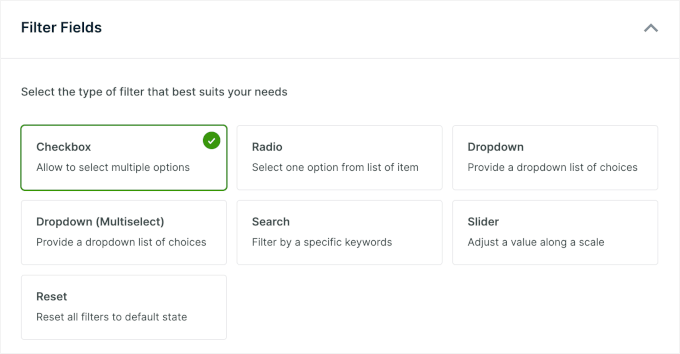
One feature that made WPFilters especially useful for larger catalogs was the ability to share filter URLs.
Here’s how it works: When customers apply filters, the URL is updated automatically. Meaning that they could bookmark specific searches or share links with friends.
And what impressed me most was that WPFilters integrates perfectly with the WordPress block editor.
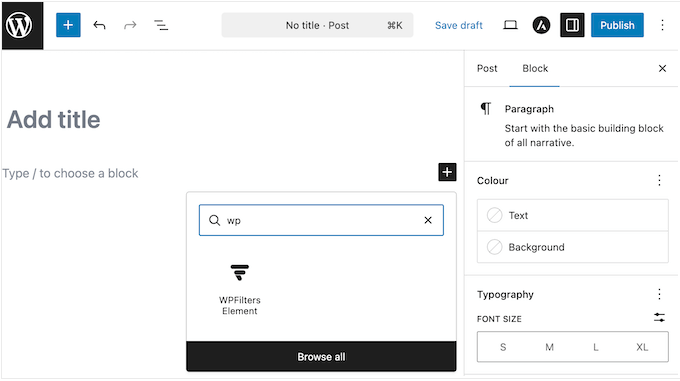
I could add and arrange filter blocks visually alongside my product grid, and preview changes instantly before publishing.
On the front end, the filters appear as clean panels that integrate nicely with the store layout. Customers can apply multiple filters at once, see results update instantly (AJAX), and remove any filter with a single click.
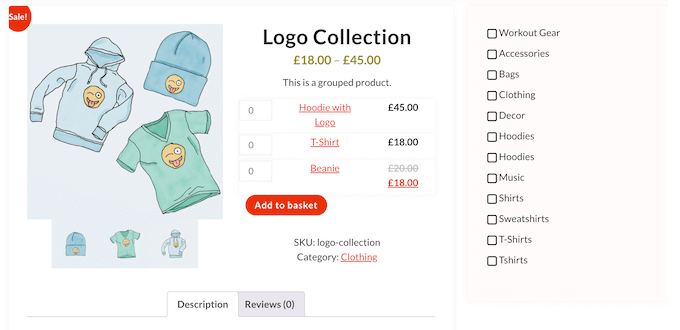
Other than WooCommerce products, WPFilters also allows you to filter other content types like blog posts and digital downloads.
I set up a filter for posts by category, and it worked just as smoothly as the product filters. This flexibility extends to hierarchical filters as well. Selecting a main category automatically revealed related subcategories, which made navigation more intuitive for customers.
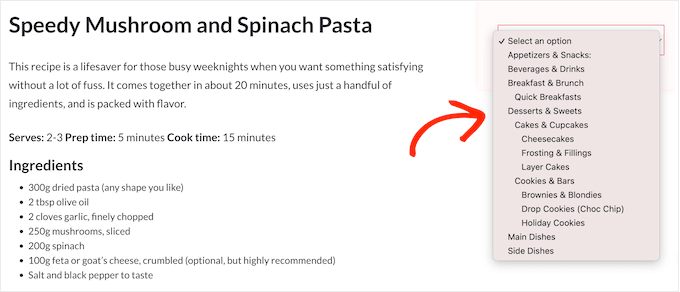
The only downside I noticed was that some advanced settings took a bit of time to explore. Simple changes were easy, but more detailed tweaks required a closer look at the block settings.
⭐ Why I Recommend WPFilters: I found that WPFilters is the best choice if you want flexible filtering across products, posts, and downloads without hiring a developer. The no-code builder and content-wide filters make it easy to scale as your store grows.
2. Themify Product Filter
🎖️ Best for Themify Theme Users
| Pros of Themify Product Filter | ✅ Live AJAX results ✅ Multiple filter layouts, including horizontal and dropdown ✅ Color, image, and style swatches for visual filtering ✅ Product tags and custom taxonomies support |
| Cons of Themify Product Filter | ❌ Requires manual styling for non-Themify themes ❌ Fewer pre-built templates than competitors ❌ Documentation could be more detailed |
| Pricing | Free version available. Paid plans start at $89/year |
| Best For | Websites and stores already using a Themify theme and looking for built-in style compatibility. |
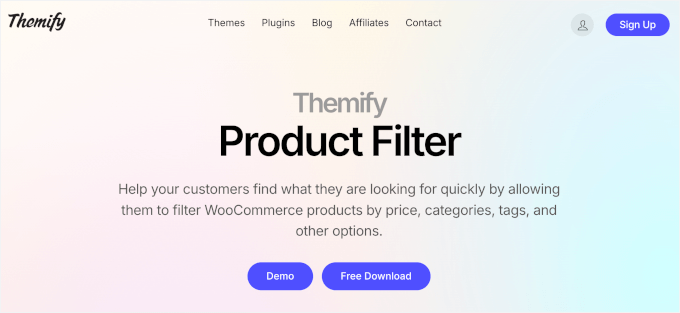
Themify Product Filter is built specifically for Themify theme users, which means the filters inherit your theme’s styling automatically. On my test site with Ultra, the fonts, spacing, and stock indicators matched the shop layout without any manual styling.
You can check out our detailed Themify review for more information.
My Experience
During my testing, I installed the plugin and added my first filter widget to the shop sidebar. The setup wizard guided me through choosing filter types and connecting them to product attributes.
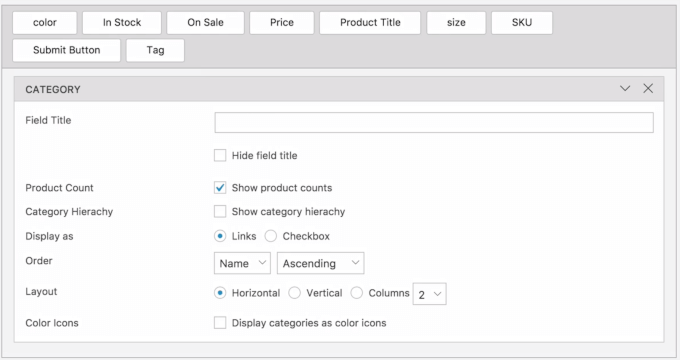
I appreciated the dropdown layout option. When space was limited, I could just switch to the dropdown filter type, so they collapsed neatly until customers needed them.
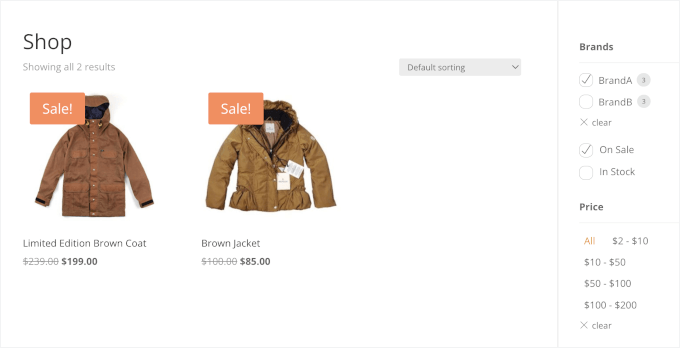
Product tags and custom taxonomies are connected without extra configuration. I filtered by brand taxonomy, and the plugin picked it up automatically.
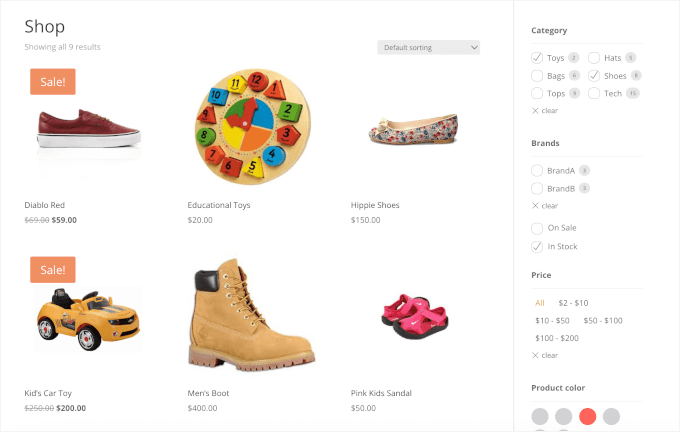
Then, I set up color swatches for product variations. So, instead of dropdown text, customers saw visual color blocks they could click, which made selecting options faster.
When testing the Themify product filter, the live AJAX results appeared as soon as I clicked a filter option. Pages didn’t reload, and the transition felt seamless.
The main limitation I found was compatibility with non-Themify themes. When I tested it on a different theme, some styling broke and required custom CSS fixes.
⭐ Why I Recommend Themify Product Filter: If you already use a Themify theme, this is the smoothest option. Filters match your design out of the box, and AJAX results keep the shopping flow fast.
3. YITH WooCommerce Ajax Product Filter
🎖️ Best Beginner-Friendly Filter Plugin
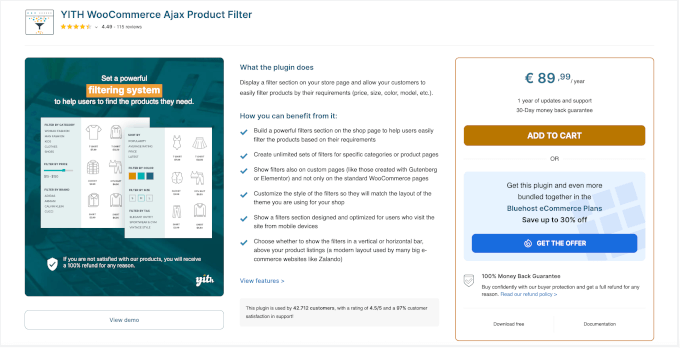
| Pros of YITH WooCommerce Ajax Product Filter |
✅ Unlimited filter sets for different shop pages ✅ Simple widget interface with AJAX ✅ Works with most WooCommerce themes ✅ Range sliders for price and numeric filters |
| Cons of YITH WooCommerce Ajax Product Filter |
❌ Design customization options are limited in the free version ❌ Advanced filter types need a premium plan |
| Pricing | Freemium Pro starts at €89.99 |
| Best For | Beginners who want an easy way to add basic product filters. |
YITH WooCommerce Ajax Product Filter is the easiest way to add product filters if you’re just starting out.
I often recommend it to new store owners because you get working AJAX filters for free. This means your customers can filter products instantly without waiting for the page to reload.
My Experience
After installing the plugin, I added the filter widget to my shop sidebar. The setup took less than five minutes because the options were labeled clearly, so I knew exactly what I could add.
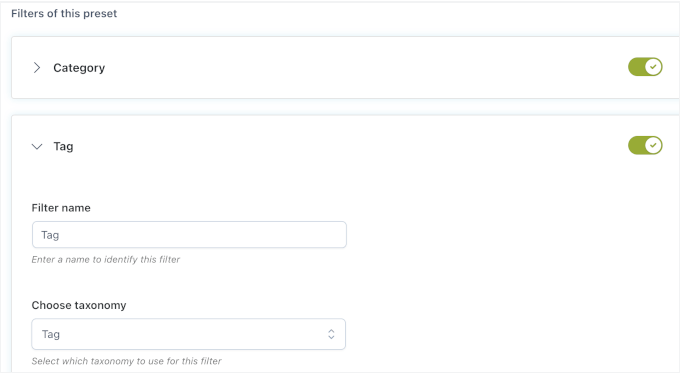
Live AJAX updates worked immediately. When I clicked a filter checkbox, products refreshed without reloading the page, which kept the experience fluid.
The range slider for price filtering also worked smoothly. Customers could drag the slider to adjust their budget, and the results were updated in real time as they moved it.
I also tested horizontal filters above the product grid and vertical filters in the sidebar, and both worked without layout conflicts.
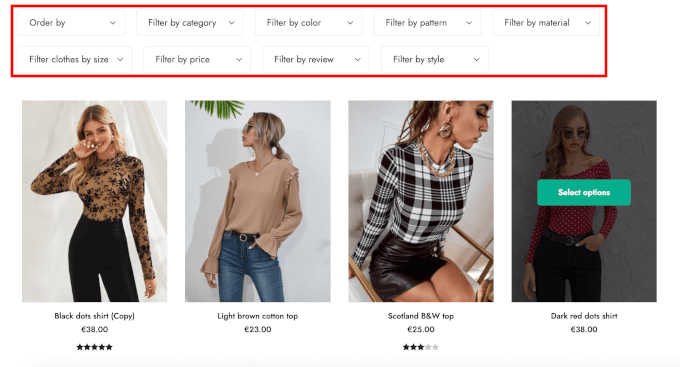
The plugin worked with my theme right away. I didn’t need to adjust any settings or add custom CSS to make filters display properly.
Plus, I tested the widget interface in the WordPress customizer. Filters appeared exactly where I placed them, and I could preview changes before publishing.
The biggest limitation was that advanced filter types, such as color swatches and dropdown layouts, were only available in the premium version. For basic checkbox and slider filters, though, the free version handled everything.
⭐ Why I Recommend YITH WooCommerce Ajax Product Filter: It’s perfect for beginners who want reliable AJAX filtering without paying upfront. You can upgrade to YITH WooCommerce Ajax Product Filter Pro if you need advanced layouts.
4. JetSmartFilters
🎖️ Best for Page Builder Users

| Pros of JetSmartFilters | ✅ Works seamlessly with Elementor’s Loop Grid and other page builders ✅ Visual filter widgets with live preview ✅ Supports advanced filtering rules ✅ Fast performance on large stores ✅ Multiple filter types like checkboxes, radios, and price ranges |
| Cons of JetSmartFilters | ❌ Requires JetEngine for full functionality ❌ Takes time to learn advanced setups |
| Pricing | Starts at $43/year |
| Best For | Stores built with custom layouts using Elementor, Gutenberg, or other page builders. |
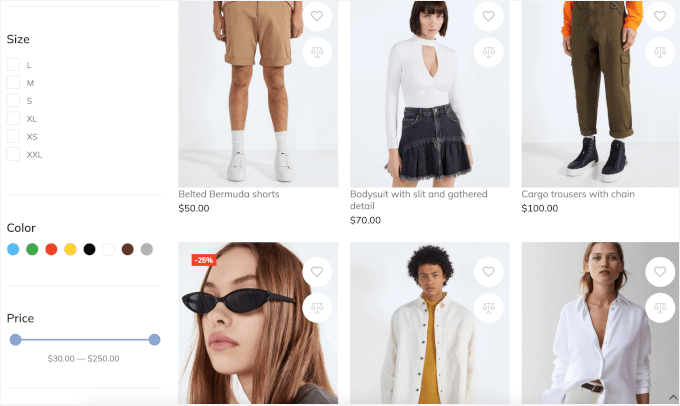
JetSmartFilters is the best choice if you build your WooCommerce pages with Elementor or Gutenberg. Instead of adding filters separately, you can place them directly inside your product grids and blocks in the page builder.
What makes it even more flexible is that it comes with ready-made filter setups for different niches, like real estate (IDX), car rental and dealership, medical clinics, travel sites, and more. This makes it easy to build advanced filters even if you’re not starting from scratch.
My Experience
I installed JetSmartFilters and opened Elementor to build a filter set for my product grid. Using Elementor’s Loop Grid, I could connect JetSmartFilters to my layout in just a few clicks.
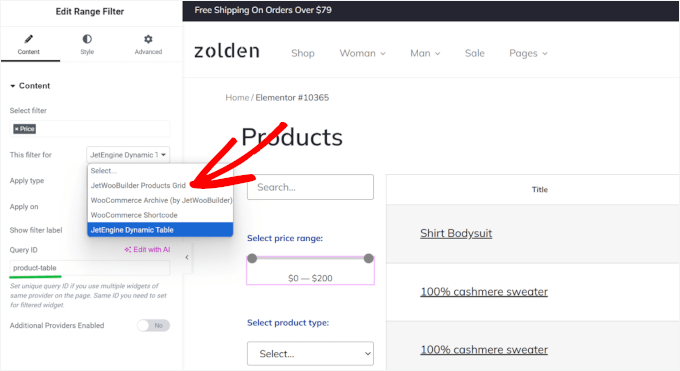
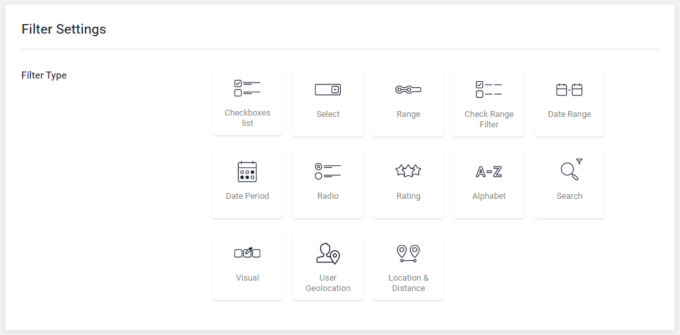
What I liked most was the live preview. As I added dropdowns, checkboxes, and price sliders, I could see exactly how they would look before publishing the page.
If you don’t use Elementor, don’t worry.
The classic JetSmartFilters interface is still available, and switching between both modes takes only one toggle.
This plugin also works well for booking and appointment websites, where visitors need to filter by service type, specialist, location, or price.
Performance was solid, too. I tested radio buttons, range sliders, and search fields, and each one updated results smoothly without reloading the page.
The main drawback is that JetSmartFilters works great on its own for standard filtering. But you’ll need JetEngine to create advanced dynamic listings with custom content and fields.
⭐ Why I Recommend JetSmartFilters: If you use Elementor or Gutenberg and want filters that work directly inside your product layouts,, JetSmartFilters gives you one of the most flexible and professional setups available.
5. Barn2 WooCommerce Product Filters
🎖️ Best Filter Plugin for Large Online Stores
| Pros of Barn2 WooCommerce Product Filters | ✅ Handles thousands of products without slowing down ✅ Multiple layouts, including sidebar and horizontal filters ✅ Works with product categories, tags, and attributes ✅ Mobile-friendly design with slide-out filters ✅ Compatible with most WooCommerce themes |
| Cons of Barn2 WooCommerce Product Filters | ❌ More expensive than basic filter plugins ❌ Takes time to learn advanced features ❌ Some custom changes require coding |
| Pricing | Starts at $79/year |
| Best For | Large stores with huge catalogs that need fast, performance-friendly filtering. |
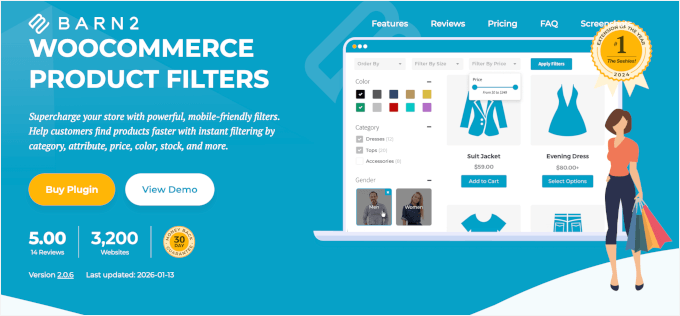
Barn2 WooCommerce Product Filters is built for stores with a lot of products. I tested it on a shop with thousands of items, and it stayed fast even when several filters were active at the same time.
Plus, it stands out for its modern, minimalist design that looks professional right out of the box.
My Experience
After installing the plugin, I ran its built-in tool to prepare the product database for faster filtering.
This tool indexes your product data, so the plugin doesn’t have to search your entire database for every click. It took a few minutes to run, but after that, everything felt much quicker.
Setting up filters was straightforward. I could choose from common filter types like dropdowns, checkboxes, labels, images, and price sliders. I could also add sorting options like newest products, popularity, and price.
To choose what customers could filter by, I simply picked things like color, size, tags, sale items, and other product details.
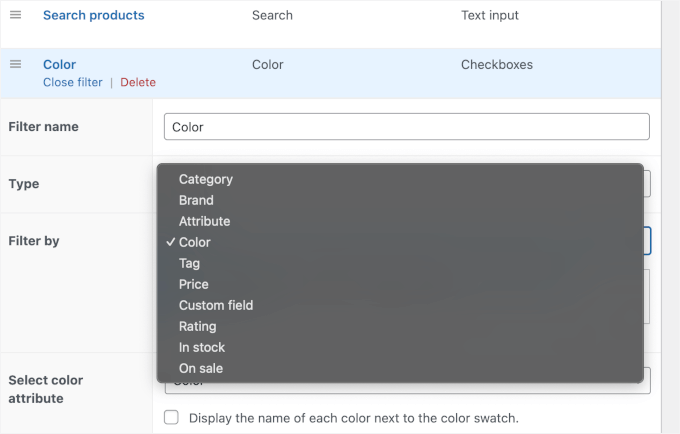
From here, I tested different layouts to see how flexible it was. Besides the usual sidebar filters, I also added horizontal filters above the product grid, which worked well for category pages.
Then, adding filters to the shop sidebar was easy using the built-in widget.
On the front end, the filters felt very smooth. Even with five filters active at once, results appeared instantly, and the page never froze.
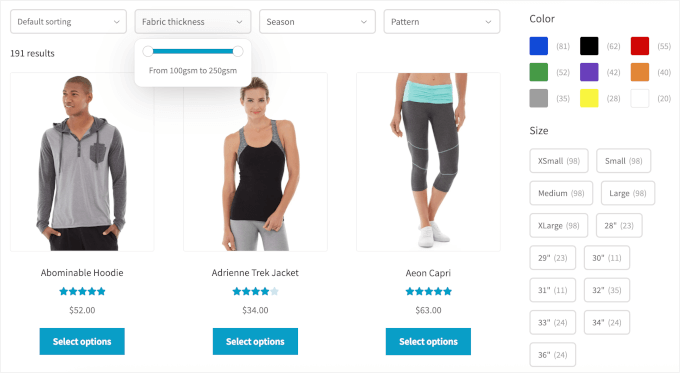
I also appreciate that the plugin worked nicely with popular WooCommerce themes, so I didn’t run into styling issues.
The main downside is customization. Basic setup is simple, but if you want to change how filters behave in very specific ways, you may need to edit a bit of PHP or CSS.
⭐ Why I Recommend Barn2 WooCommerce Product Filters: From testing, I found that Barn2 WooCommerce Product Filters is a great choice for large online stores with thousands of products. Indexed filtering keeps results instant, even under heavy load.
6. Husky Products Filter (formerly WOOF)
🎖️ Best WooCommerce Filter Plugin for Developers
| Pros of Husky Products Filter | ✅ SEO-friendly filter links (good for search engines) ✅ Lots of ways to customize filters for specific needs ✅ Multiple filter types like categories, tags, price sliders, checkboxes, and more ✅ Works with custom taxonomies and meta fields ✅ Lightweight and fast for front-end filtering |
| Cons of Husky Products Filter | ❌ Can feel technical and not very intuitive for beginners ❌ Limited visual customization without CSS ❌ Documentation assumes coding knowledge |
| Pricing | Freemium Pro starts at $42/year |
| Best For | Developers and SEO-focused stores that need advanced control over filtering behavior. |
Husky Products Filter is the plugin I recommend for flexible filtering and clean URLs that help search engines index filtered results. It used to be called WOOF, and it’s been around for years as a highly configurable WooCommerce filter tool, particularly for developers.
The SEO-friendly URLs were a standout feature for me. Unlike standard AJAX plugins that keep the web address the same, Husky updates the URL with readable keywords. This allows Google to index specific filter results, like “Red Running Shoes.”
My Experience
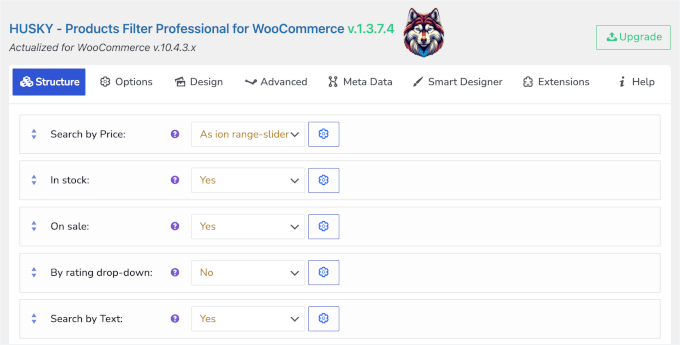
After activating Husky, I built a set of filters through its Structure panel. Husky’s UI is more text- and settings-based, so it can feel a bit technical at first.
I added filters for in-stock items, on-sale products, ratings, price ranges, and a search field. You can also filter by custom product details if your store uses extra fields.
One standout feature is SEO-friendly links. Instead of URLs like ?filter=123, Husky can generate clean, readable links like: /swoof/color-red/product_cat-sport/.
These can be included in your sitemap and help your site get indexed better by Google and other search engines.
And because Husky is flexible, developers can also hook into its system or extend it with custom code. This makes it a good choice if you want precise control over how filters work, but it’s not as beginner-friendly as some drag-and-drop builders.
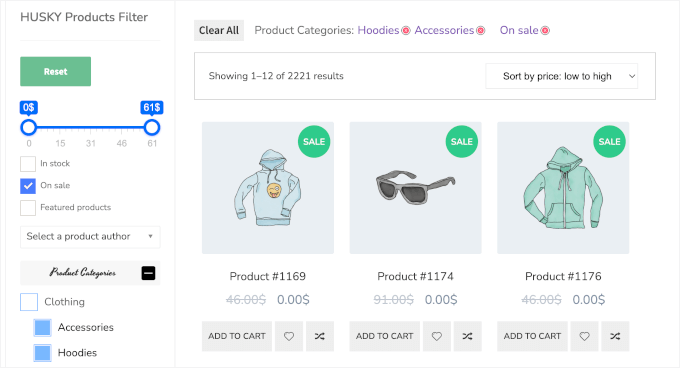
The interface doesn’t provide a visual preview, though. Instead, you work in settings and test on the front end, which may take a little more time to learn.
⭐ Why I Recommend Husky Products Filter: Husky Products Filter is ideal for developers and tech-savvy store owners who want deep control over filter behavior and SEO-friendly filter links. This allows you to create more complex product filters.
7. Filter Everything
🎖️ Best Plugin for Filtering Products and Custom Content
| Pros of Filter Everything | ✅ WooCommerce products and any other WordPress content (posts, pages, custom post types) ✅ AJAX filtering so results update without a full page reload ✅ Works with custom fields, taxonomies, and attributes ✅ You can add filters with widgets or shortcodes |
| Cons of Filter Everything | ❌ Advanced layouts (like horizontal filters or tabbed interfaces) are only in the premium version ❌ Take some time to learn how to filter more complex post types ❌ To style filters beyond the basics, custom CSS is needed |
| Pricing | Free (Lite) |
| Best For | Site owners who want one plugin to filter products, blog posts, and other content from one plugin |
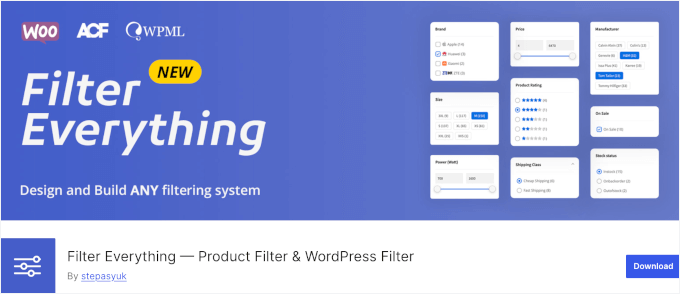
Filter Everything is a flexible filter plugin that works not just for WooCommerce products but for any content on your WordPress site – posts, pages, real-estate listings, recipes, you name it.
You can build filter sets and place them anywhere using widgets or shortcodes.
My Experience
I installed Filter Everything and built my first filter set right from the dashboard. The setup lets you choose which content type you want to filter, and I started with WooCommerce products.
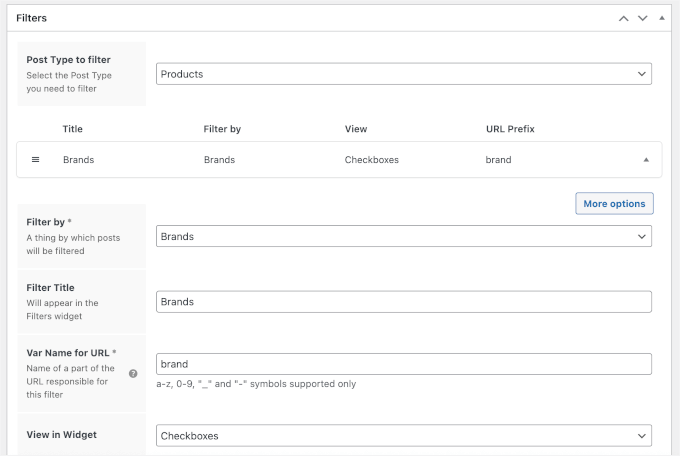
I added filters like brand, price range, and category using the widget interface. Most of the options are clearly labeled, so everything feels easy from the start.
When testing the filters on a shop page, AJAX filtering worked smoothly. When I clicked a filter option, the product list updated quickly without a full page reload.
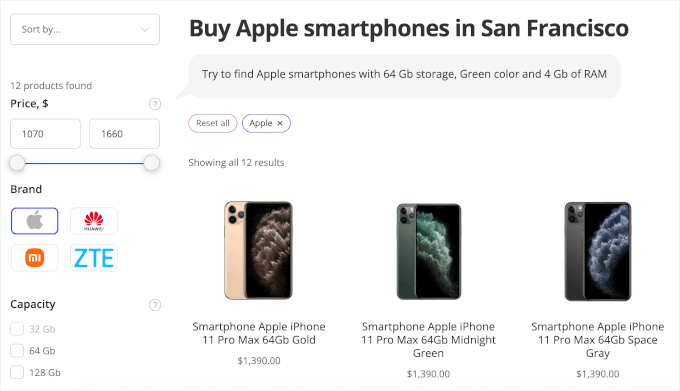
Plus, because the plugin supports custom taxonomies and fields like those created with advanced custom fields (ACF), I could also create filters for recipes and other post categories in my WordPress blog using the same interface.
The free version’s main limitation was that advanced filter layouts, such as horizontal grids and tabbed interfaces, required the premium version.
⭐ Why I Recommend Filter Everything: Filter Everything is perfect if you need one plugin to filter products, posts, and custom content. You don’t need separate tools for different sections of your site.
What Is the Best WooCommerce Filter Plugin?
WPFilters is the overall best option for most WooCommerce store owners. It combines no-code setup with powerful filtering across products and custom content, plus shareable URLs for bookmarking and SEO.
For beginners, YITH WooCommerce Ajax Product Filter delivers reliable filtering with very easy controls. And if you’re using Themify themes, then Themify Product Filter offers seamless integration and fast AJAX results.
FAQs About WooCommerce Product Filters
Below are quick answers to some common questions about WooCommerce product filters.
What is the product price filter in WooCommerce?
The product price filter lets customers narrow down products by price range, usually with a slider or set minimum and maximum values. It helps shoppers stay within their budget and find products faster.
What’s the difference between product search and product filters?
Think of it this way: Search is for when a customer knows exactly what they want (e.g., “iPhone 15”). Filters are for when they are browsing and want to narrow down options (e.g., “Smartphones under $800”).
Can I add a filter by category in WooCommerce?
Yes. WooCommerce lets you filter products by category, so customers can quickly view items from a specific group, like “Shoes” or “Accessories.” Many filter plugins make this even easier to customize.
Can customers filter products by attributes (size, color, brand)?
Yes. If your products use attributes like size, color, or brand, customers can filter by them. This is very helpful for stores selling clothing, accessories, or anything with variations.
How do I add AJAX product filters in WooCommerce?
Use a WooCommerce filter plugin that supports AJAX. This lets products update instantly without reloading the page, creating a smoother shopping experience.
Next Steps to Complete Your WooCommerce Store Setup
I hope this guide has helped you find the best filter plugin for your WooCommerce store.
Next, you might want to explore other ways to improve your WooCommerce store’s performance and user experience:
If you liked this article, then please subscribe to our YouTube Channel for WordPress video tutorials. You can also find us on Twitter and Facebook.