There are few WordPress tasks as stressful as moving a site to a new host. Even if you’ve done it before, the risk of missing one detail is real. It could be an upload limit that blocks your backup, a broken URL that turns images into 404 errors, or a database search-and-replace that quietly corrupts your serialized data. When the site in question is a client project or your main business, “mostly fine” isn’t close to good enough.
My All-in-One WP Migration review looks at a go-to plugin for the task that could be the premium option you’re looking for.
All-in-One WP Migration Pro Review: Fast Facts
- The plugin handles one-click exports and imports of your entire WordPress site as a single file (including large-site migrations) without touching server settings.
- There are over 15 cloud storage integrations, scheduled backups, WP-CLI support, and a Reset Hub for site management.
- Pricing works through usage rather than site installs and costs $99 per year.
All-in-One WP Migration Pro Review: Pricing

The free plugin on WordPress.org could work for you as it carries no upload size restrictions (although your hosting environment could impose its own PHP limits). For most straightforward migrations, it covers everything you need.

However, there’s a Pro extension suitable for up to 50 sites and costs $99 per year. Local development environments are excluded from that count, which will be welcome if you work on a site before you push it live.
Also, the plugin counts sites by usage, not by active installs. Any site where the plugin performs a migration or backup within the subscription year counts against your quota, even if you later remove the plugin. A one-time client migration counts the same as an ongoing managed site. If you run one-off migrations, this might be restrictive. However, for small teams or agencies, 50 sites is more than enough headroom.
All-in-One WP Migration Pro Review: What the Plugin Does
In a nutshell, the plugin packages your WordPress database, Media Library, themes, plugins, and all content into a single file. You export from the source site and import on the destination without using a database client, needing FTP access, or editing wp-config.php.
The premium version of the plugin supports sites of any size, includes direct cloud storage connections, and gives you automation options through scheduled backups and WP-CLI.
The plugin works well for a range of users and scenarios:
- Site owners moving to a new host who want a single-file backup they can restore without technical help.
- Developers pushing staging to production who need a reliable export-import process with no manual database work.
- Agencies running regular client migrations with a high volume of work.
- Anyone whose site exceeds shared hosting upload limits and needs Pro’s chunked import process to bypass those restrictions.
However, if you prefer SSH-based tooling or already run a dedicated backup stack through your hosting provider, there could be some overlap. It’s also worth noting upfront that some popular managed hosting providers (such as Kinsta, WP Engine, and HostPapa) are on the plugin’s unsupported list. This isn’t always going to be down to Servmask obviously, but it’s still worth considering if you’re interested in the plugin.
All-in-One WP Migration Pro Review: Functionality
You’re able to run a standard full-site export or use the extra options to exclude specific components:
- The database, Media Library, or individual plugins and themes.
- Specific file paths within your WordPress installation.
- Post revisions and spam comments to reduce the final file size.
The plugin packages everything into one file, then you import it on the destination site. During each import, All-in-One WP Migration Pro performs a find-and-replace on all hardcoded URLs in the database and handles serialized data. This shuts down one common cause of broken images, missing styles, and internal link failures after a migration – and it runs automatically.
Also, the plugin connects directly to over 15 cloud storage providers:
- There’s support for major providers such as Amazon S3, Google Drive, Dropbox, OneDrive, and Microsoft Azure.
- Smaller or niche providers such as Backblaze B2, MEGA, pCloud, WebDAV, FTP/SFTP, and Glacier also get support.
Each provider is available as an extension you enable from within the plugin. Scheduled backups run on a flexible schedule with retention policies to manage storage. After the first full backup, subsequent runs transfer only changed files, which reduces both the backup duration and storage footprint.
Finally, the built-in WP-CLI commands let you automate migration and backup tasks without touching the WordPress back end. This is useful for scripted deployments or environments where browser-based access isn’t practical. What’s more, the Reset Hub lets you reset WordPress environments. I could see myself using this during development and testing.
All-in-One WP Migration Pro Review: How It Works
After installing and activating the plugin, you’ll see the All-in-One WP Migration menu option in the left-hand sidebar. One aspect worth noting is that there are a few incompatible plugins that you’ll need to deactivate before you begin.
For instance, Cloudflare and Really Simple SSL aren’t compatible during import and export. This is actually worth checking before you entertain buying the plugin as a favorite of yours could be on the list. Using those plugins means you’ll need to activate and deactivate them potentially on a regular basis.
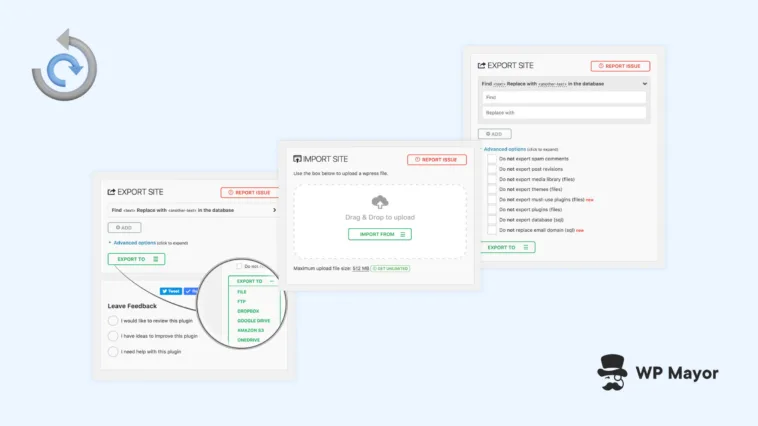
Regardless, to begin a migration, choose Export:

I had to go hunting through the documentation to understand whether I needed to fill in the Search and Replace settings on the Export Site screen. It turns out you don’t for typical migrations.
You also don’t need to expand and tick any of the Advanced Options here. This lets you exclude specific content before packaging the backup. It’s useful when you want to move certain file types, such as only themes, the database, or recent media uploads rather than the entire site.

Next, choose an option from the Export Site To drop-down menu. Once you select an option, the export will begin. After a brief delay, you’ll see a confirmation screen with the file size and a direct download link:

The backup lives in your Backups folder in case you need it in the future:

Next, open Import on the destination site and select your source, which could be a local file or a cloud provider if you enable the relevant extension. With the Pro version (as opposed to the free version), there’s no file size warning; the import proceeds regardless of your host’s PHP upload limits.
As with an export, there’s no confirmation that the import will proceed so make sure you’re ready! It’s such a quick and painless process in comparison to other migration plugins I’ve tried, which will be a relief if you often have to work with site migrations.
All-in-One WP Migration Pro Review: Support and Documentation
There’s a lot of documentation available for All-in-One WP Migration Pro, which helped me during this review. It covers practically every aspect of using the plugin, migrating sites, edge cases, and hosting-specific instructions.
However, one honest caveat here: some sections of the documentation are showing their age. For instance, the core plugin user guide dates from 2018 and the plugin incompatibility documentation from 2016. There are also some missing screenshots here and there. Even so, the premium extension user guide is up to date.

For a plugin that handles server-level and core WordPress operations, that’s a meaningful gap. I found the core workflow accurate, but if you hit an edge case, you may find yourself relying on the plugin’s support instead.
Speaking of which, support runs through a ticketing system based around an on-site contact form:

Researching the support sentiments for this review popped up some mixed responses. On the whole, many reviews mention fast and helpful responses. In fact, several users with complex restoration problems describe getting a quick resolution. However, a minority of reviews flagged up slower response times, particularly for free-tier users.
All-in-One WP Migration Pro Review: What Real Users Think of the Plugin
This is a good point to discuss the public reviews of All-in-One WP Migration. It’s worth noting that the free plugin has a huge number of five-star reviews on WordPress.org: nearly 6,500! Clearly this reflects consistent reliability over a very large user base. On Trustpilot, ServMask holds a 4.5 rating, which is a respectable figure.
The most consistent positive theme across all platforms is the simplicity of the three-step process:
“…export…upload…import. Three clicks only and voilà! Your new website is up and running in no time.” – aldoseri, WordPress.org
One agency user on Trustpilot recounts a difficult restoration scenario where ServMask support stepped in and resolved the problem through direct email:
“I reached out to ServMask and they went out of their way to help me out…their knowledge and experience helped me get the site restored and made my client happy.” – D F, Trustpilot
On the other side though, there are some recurring criticisms. For instance, several WordPress.org reviews flag issues around upload file sizes in the free version as frustrating, particularly if you don’t realize upfront that bypassing it requires a paid extension.
My Final Thoughts on All-in-One WP Migration Pro
All-in-One WP Migration Pro could be worth the $99 per year if you work with sites large enough to hit hosting upload limits, or if scheduled cloud backups would replace a separate solution you’re currently paying for. Unfortunately, the hosting restrictions and plugin incompatibilities that are sometimes out of the developer’s control are limitations: if you’re on Kinsta or WP Engine, or regularly work with Cloudflare-protected sites, factor that in before purchasing.
Related Articles
Is there something you’re wondering about my All-in-One WP Migration Pro review? I’d love to discuss it with you in the comments section below!